


Automation
Zapier
Send letters from 8,000+ Zapier apps. No code required — one action, any trigger.
What it does
How Zapier works with Intelliprint.
Intelliprint is a published Zapier app in the Printing category. If the tool your team uses can trigger a Zap — new row in Airtable, closed deal in Pipedrive, form submission in Gravity Forms, invoice created in Xero — it can post a letter. Pick the trigger, add the Intelliprint “Send Letter” action, map the recipient fields, and physical mail runs as part of your workflow.
The Zap currently exposes a single action: Send Letter. You provide the letter content (text, HTML, or a PDF URL), the destination address, and flags for test vs auto-send. That’s enough to cover the core use case — triggered letters from almost any source — without asking you to touch an API key or configure a webhook.
Zapier is the right route when you don’t want to write code and the mail you’re sending is a letter. For postcards, direct mail campaigns, or anything that needs template merging or PDF uploads, use the Intelliprint API directly — the API supports the full product catalogue.
Common use cases
What teams build with Zapier + Intelliprint.
- Trigger a letter when a new customer signs up via a form
- Post an invoice letter when a new invoice is created in your accounting tool
- Post a welcome letter when a deal is marked Closed Won in your CRM
- Send a manual follow-up letter from a row in Airtable or Google Sheets
- Mail a letter-before-action when an invoice ages past its due date
Set-up
Get connected in 5 steps.
Get an Intelliprint API key
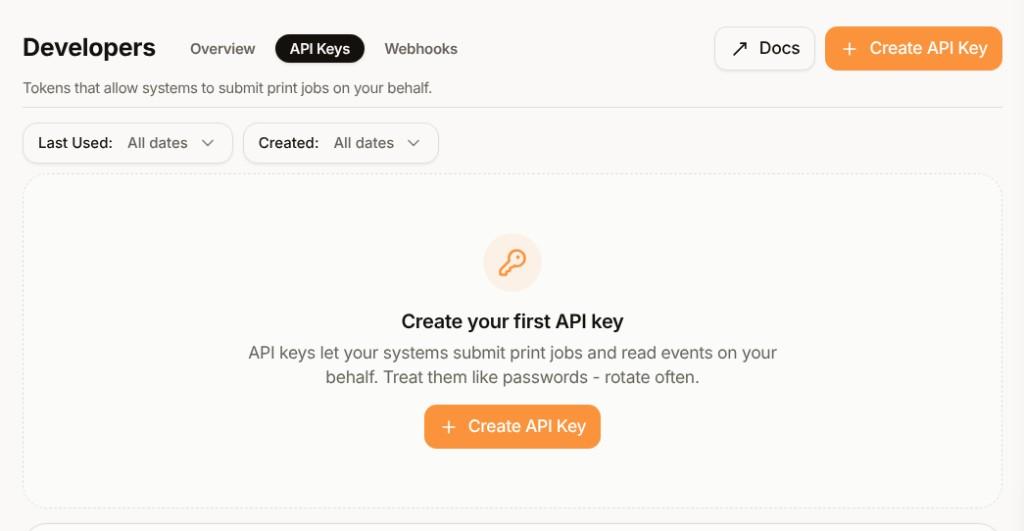
Create an Intelliprint account at intelliprint.net, then generate a key in Developers → API Keys — you'll paste this into Zapier when connecting the app.
Start a new Zap
In Zapier, search for Intelliprint in the app directory and create a new Zap. Pick the app and event you want to trigger the letter — CRM, form, spreadsheet, scheduler, anything with a Zapier trigger.
Add the Send Letter action
Add the Intelliprint Send Letter action. Connect your account using the API key from step one. You only need to do this once per Zapier workspace.
Map your recipient and letter content
Map fields from the trigger into the Send Letter action: the letter body (text, HTML, or a PDF URL), recipient name, address lines, postcode, and optional reference.
Test first, then go live
Use the Test Mode flag on your first few runs so letters are created as drafts rather than produced immediately. Preview in the Intelliprint dashboard. When the output looks right, switch to auto-send and turn on the live Zap.
Ready to send mail from Zapier?
Free to start. No setup fees, no minimum order.